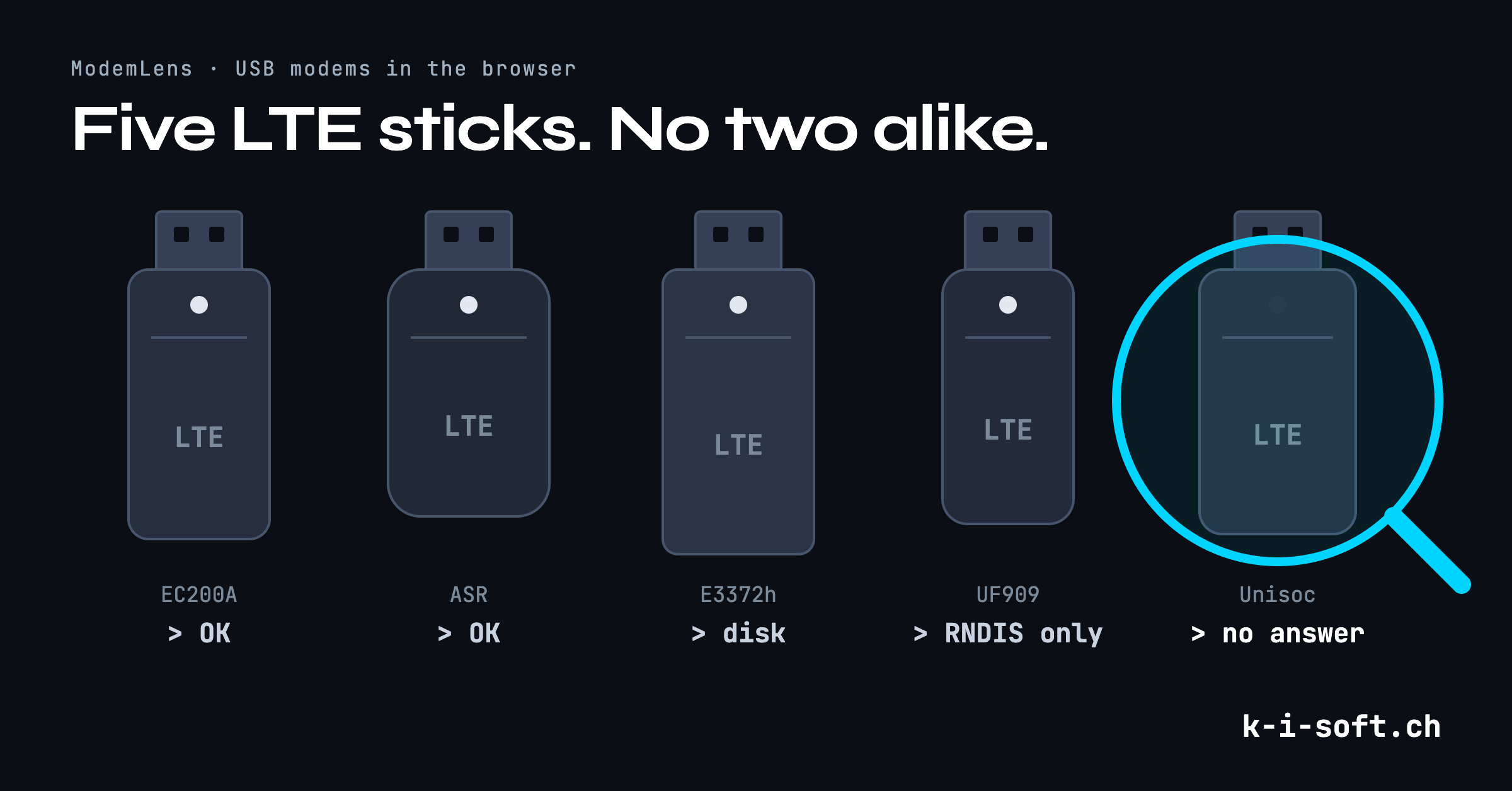
For one project I had to find out which LTE sticks and USB modems were any good at all. Soon a whole pile of them lay on my desk. Plugged in, each one did something different: one showed up as a disk, one politely answered every command, and one stayed silent on all of its interfaces.
I wanted to see what each one really does, on the Mac as well as on Windows, without first installing vendor software on every computer. That became ModemLens: a web page that reads a USB modem directly in the browser and shows what it is, whether it is on the network and how good the signal is. The tool is free and the code is open under the MIT licence.
Five sticks, five characters
This is where things stood after the first measurements. I have left it as it is, including where the tool gets no further.
| Stick | What it does and how ModemLens gets in |
|---|---|
| Quectel EC200A | Speaks AT. Directly over USB, no driver on the Mac, WinUSB on Windows. |
| ASR UFI_V2_AU | Speaks AT and is on the network at once with a SIM. Directly over USB. |
| Huawei E3372h | Starts as a disk and has no AT. Readable through its own admin page. |
| MediaTek UF909 | No AT, and macOS has no RNDIS driver. Readable over its own Wi-Fi and admin page. |
| Unisoc stick | Seven vendor interfaces, none answers AT. Not readable so far. |
ModemLens reads two directly and two by a detour, and one has beaten me so far.
A modem, addressed from a web page
Chrome and Edge can talk to attached hardware. WebUSB addresses the device directly, and Web Serial uses a serial port the operating system already provides. Firefox and Safari offer neither, so ModemLens cannot talk to a modem there.
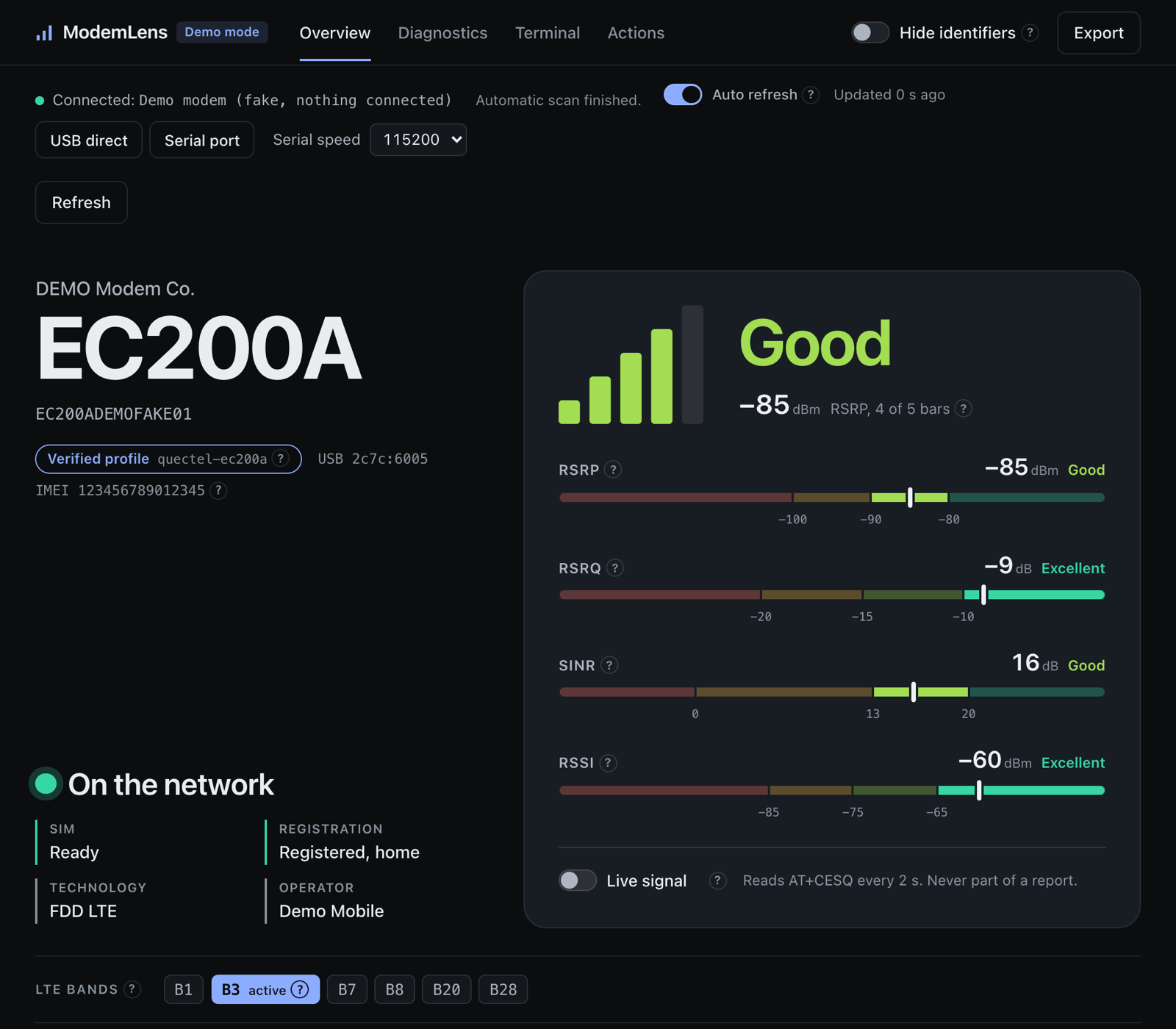
Many modems understand AT commands, short text commands they answer with text. ModemLens sends a list of such queries and turns the answers into the instrument panel you see above.
One rule was fixed from the start: if you check a stick, you should be able to unplug it in exactly the state you plugged it in. So the automatic scan only sends queries, and my tests check that for every model profile. You can change a setting only in a separate tab, one at a time and after confirming, currently for two models. The modem’s answers stay in your browser, and ModemLens has no server they could go to.
The same stick on Mac and on Windows
On the Mac the Quectel EC200A needs no driver: plug it in, connect in Chrome, read. On Windows the same stick needs WinUSB, and only on the interface that carries the AT commands. So “nothing to install” holds on Windows only with that caveat. The help inside the tool walks you through that step.
I walked into a trap here that cost me time. A claimInterface on an interface without WinUSB never returns. No error message, nothing at all, the page just keeps waiting. While the call hangs, controlTransferOut and device.close() fail as well. Since then every USB call in ModemLens has a time limit.
The Huawei stick that would rather be a disk
The Huawei E3372h presents itself as a disk when you plug it in. Chrome does not even offer a pure mass storage device in the WebUSB picker. Ejecting it did not change its mind either. On the Mac it finally took a SCSI message sent with sudo, and only then did it become a network adapter with an admin page at 192.168.8.1. Even then it has no AT channel.
The admin page answers without a login, so I wanted to simply fetch the data there. That does not work: ModemLens runs over HTTPS, the stick speaks unencrypted http://192.168.8.1, and the browser does not allow such a fetch().
The solution is a bookmark. You add it once and click it on the stick’s admin page. The code then runs there, where the request is allowed, and saves what the page shows to a file. You open that file in ModemLens.
What the first real modem showed straight away
All my tests were passing before I had connected the first real modem. After that, several readings were wrong at once. The EC200A reports the RSSI of AT+QCSQ without a sign, so 56 for -56 dBm. In the neighbouring cells from AT+QENG="neighbourcell", RSRP comes before RSRQ, and I had the two columns the wrong way round. And the modem delivers placeholders that look like measurements: a PCI of 65535 or an RSRP of -140 means no cell was measured on that frequency at all.
The tests had not caught this because they checked what I expected from the modem. The EC200A profile has since been verified against a real capture.
The best find came while trying it out. I switched the modem off, and the overview cheerfully stayed on “live” for a long time. It was simply showing the state of the last scan. Since then ModemLens asks for the status values again every five seconds, read-only.
What has no place in a shared report
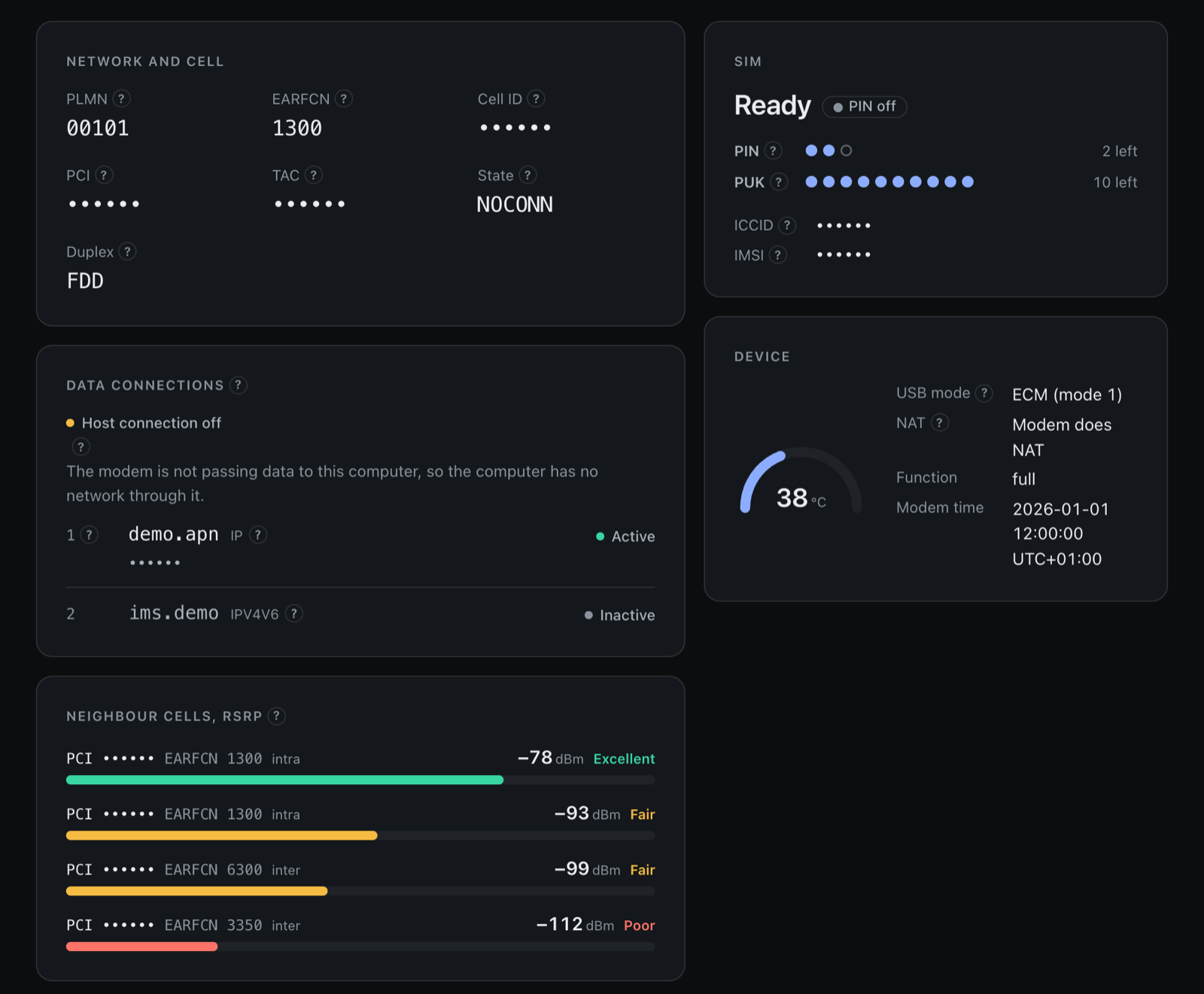
If you ask someone for advice about a modem problem, you send a report. The shareable export therefore masks identifiers such as IMEI and IMSI, and the full export needs a confirmation.
Masking alone is not enough, as a review showed. A modem also sends lines nobody asked for. If an SMS notification or a GPS sentence comes in during a query, that line sits in the middle of the answer. With the queries about the modem’s identity it would have landed in a field that is not masked, and so in the report you pass on.
Since then text stays only where a known parser has understood the answer, and even then only after masking. Everything else is reduced to its shape, meaning its length, the number of lines and the kinds of characters in it.
Try it yourself
ModemLens runs at modemlens.k-i-soft.ch in Chrome and Edge. If you have no stick to hand, the demo shows the same interface with a made-up modem. The code is at github.com/k-i-soft/modemlens. If your stick behaves differently from what I describe here, I would be glad to hear about it there, above all about a Unisoc stick.